TL;DR: Worknice gives HR teams four tools for organising and analysing people data: data tables under Tables, the Paperwork page, the paperwork audit trail, and Insights. Tables let you choose columns, filter, sort, save views, and download to CSV. Insights add ready-made dashboards for compliance, retention, diversity, compensation, the gender pay gap, and org structure.
Last updated 11 October 2026.
Key takeaways
- Most HR reporting effort goes into assembling data, not analysing it, so the right view matters more than another export.
- Worknice data tables can show fields from across the platform, including custom fields, paperwork status, and payroll-synced pay details.
- The paperwork audit trail records each status change on a document with a timestamp and the user responsible.
- Insights cover six areas, from turnover and tenure to the gender pay gap, and only account owners can see them.
- According to WGEA, private sector employers with 100 or more employees report gender equality data every year, so analysis tools pay off at reporting time.
Why is organising and analysing HR data so hard?
HR data is hard to organise because it arrives from many places and changes every day. Starters, leavers, pay changes, certificates, and leave requests all update the record. Most teams answer each new question by exporting a spreadsheet, cleaning it, and building a one-off report, which goes stale the moment someone else edits the source.
In the fast-paced world of HR, managing and analysing large amounts of employee data can be a daunting task. The volume alone is a problem. For example, an organisation of 500 people with ten tracked documents each is watching 5,000 items, and each one has an owner, a status, and often an expiry date.
The obligations add pressure. According to the Fair Work Ombudsman, employers must keep time and wages records for 7 years, and those records must be readily accessible to a Fair Work Inspector. According to WGEA, private sector and Commonwealth public sector employers with 100 or more employees must lodge gender equality data each year between 1 April and 31 May.
So the question is not whether HR has the data. It usually does, somewhere. The question is whether the team can see the right slice of it, quickly, without rebuilding a spreadsheet every time.
What does a good HR data toolkit need?
A good HR data toolkit lets you choose which fields to see, filter and sort them in any combination, save the view, and act on the results. It also keeps a history of who changed what, and it offers ready-made measures for the questions leaders ask every month. Exports should be available, but rarely necessary.
In practice, that means five capabilities:
- Flexible views: any field as a column, including custom fields.
- Filtering and sorting: several values at once, and sorting that understands meaning, not only the alphabet.
- Saved, reusable views: a payroll check or an expiry list you open again next month.
- History: a record of each change, for audits, disputes, and plain catching up.
- Ready-made analysis: turnover, tenure, pay, and compliance without building the formulas yourself.
Those five capabilities are a fair test for any HR data tool, Worknice included. Each one also depends on the data being structured in the first place, which our piece on structured HR data and its benefits covers.
How does Worknice help you organise and analyse HR data?
Worknice organises and analyses HR data through data tables under Tables, the Paperwork page, the paperwork audit trail on each document, and Insights. Tables build custom views of people data, while the Paperwork page shows what needs action. The audit trail records each document’s history, and Insights turn the same data into dashboards.
These tools grew from common feedback from Worknice customers. Three requests came up again and again:
- “I need everyone in my business to have certain compliance requirements, such as a valid CPR certificate. How can I see this in a single view?”
- “I went on a holiday for two weeks. Is there a way I can see everything that has changed in Worknice over that period?”
- “I want to configure how I sort my data in different ways, such as fixed term contracts by expiry date. Can I do this?”
Controlling the chaos and moving away from spreadsheets is a key reason customers choose Worknice. Worknice is HRIS-only by design, so payroll remains the source of truth, and pay details such as pay rate and pay period can sync in from payroll and appear in a table. Each request maps to a different tool, starting with data tables.
How do Worknice data tables organise people data?
Data tables are saved, configurable views of your people data, found under Tables in the left-hand menu. You name a table, choose its columns, apply filters, and save it. Columns can come from profiles, jobs, paperwork, bank accounts, super, tax, integrations, custom fields, and saved question responses. Every change saves to your view, not the underlying data.
Creating one takes a few steps. Go to Tables, click Add Table, name it, add columns, choose any filters, and save. From then on, you can reorder columns by dragging, add or remove fields with the Columns button, and filter with the Filters button. A filter can take more than one value, so one view can show two locations or three employment types.
Sorting answers the third customer request. Click a column header to toggle between ascending and descending order. For instance, record contract end dates in a custom date field, mark fixed-term staff with a single choice field, then filter and sort on both. The contracts ending soonest rise to the top. Compliance status sorts by meaning, Compliant, then At risk, then Non-compliant, rather than alphabetically.
What can you do with a table once it is built?
You can download the table to CSV, and you can act on the people in it. Select people with the checkboxes, and a bulk actions menu appears. It can assign paperwork, add people to or remove them from a compliance group, invite or reinvite them, edit location, change tags, and connect or disconnect them from an integration.
The Worknice help centre suggests five starting tables: payroll data, a compensation overview synced from payroll, employment details, emergency contact information, and current onboarders. Suppose payroll asks you to check every start date before a system change. One saved payroll data table, filtered to active staff, replaces a morning of copying between screens.
How can you see who holds a valid certificate?
Worknice shows certificate validity in three places: compliance columns in a data table, the Paperwork tab on each paperwork type, and the audit trail on each document. Compliance groups define who needs which paperwork, so the view shows who is missing a document, not only who has one. That answers the CPR certificate request directly.
In a data table, the Compliance by group column set adds one column for each compliance group your organisation has. Each column shows the person’s overall status for that group. So a care organisation with groups for frontline staff and drivers can see exactly which requirement someone falls short on. Our article on tracking expiration dates on HR paperwork covers the expiry side.
For a single document type, open Settings, then Paperwork types, choose the type, and open its Paperwork tab. It lists submitted, outstanding, expired, and expiring items, with the responsible person and the key dates for each.
What does the paperwork audit trail show?
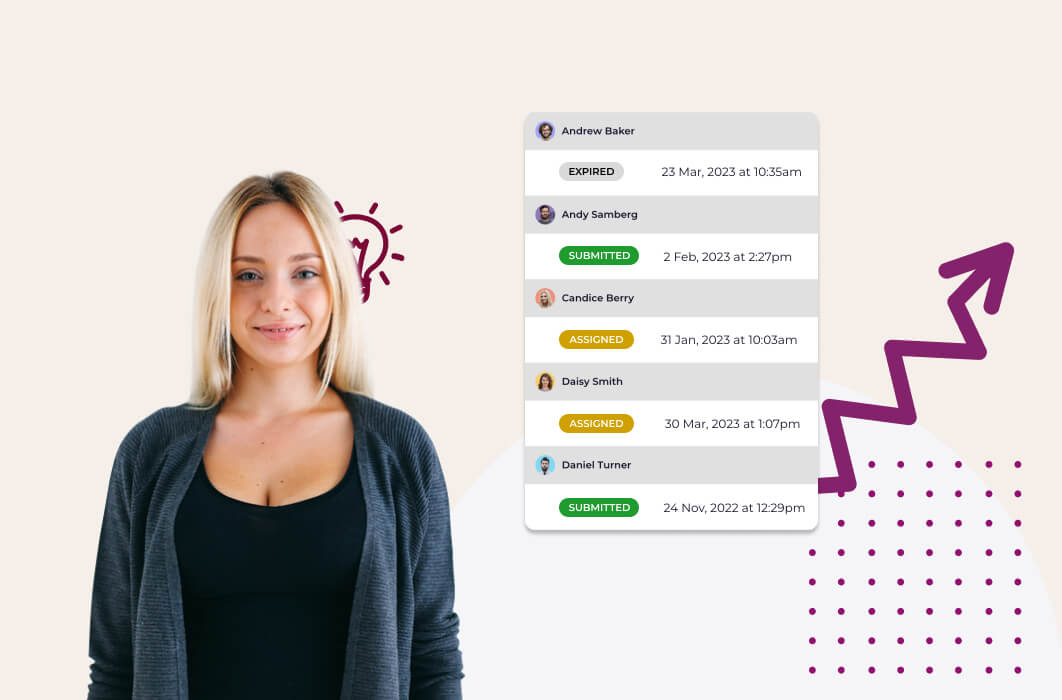
The paperwork audit trail shows the full history of an individual piece of paperwork. Open the item and scroll below the document template. You see its current status with timestamped status changes and the user behind each one, the dates it moved between stages, and any approvers with their approval status.
That history supports error detection and correction, compliance and regulatory requirements, accountability and transparency, and dispute resolution. For example, if an employee says they submitted a licence in March, the audit trail shows when it was submitted, who processed it, and when.
How do you catch up on what changed while you were away?
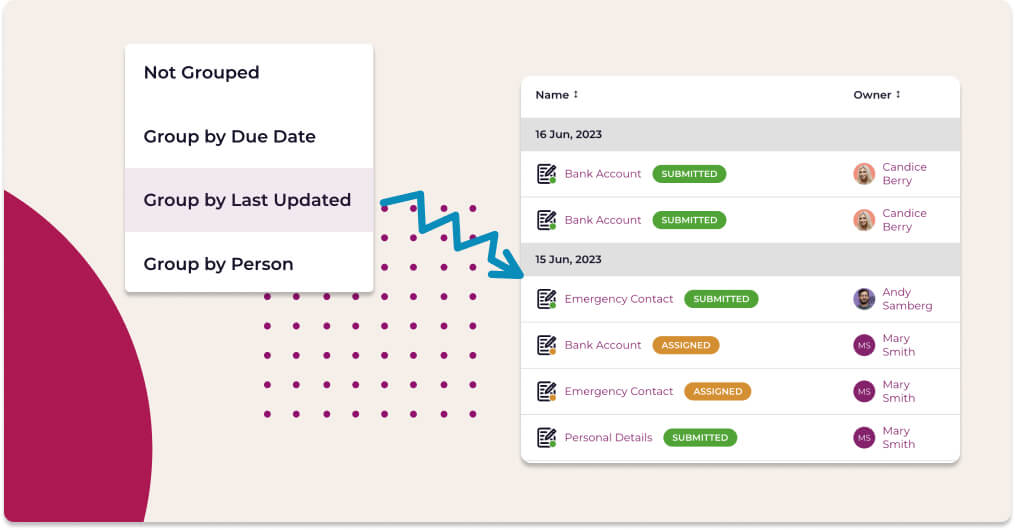
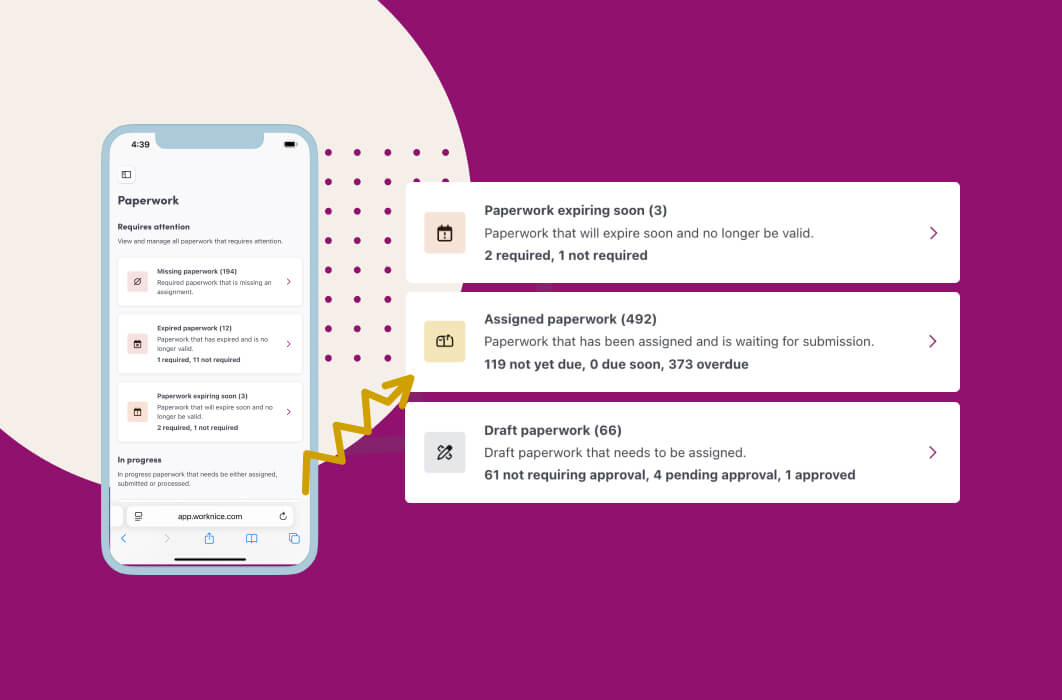
Account owners catch up in two places: the Paperwork page, which lists only paperwork that needs action, and each document’s audit trail, which holds its history. On the Paperwork page, summary cards count items that are assigned, draft, expired, expiring soon, missing, and submitted. You can search, filter by status, sort, and group by paperwork type, status, or owner.
We get it, you have a life outside of work. However, the more you holiday, the more there is to catch up on when you are back. After two weeks away, the Submitted card shows what is waiting for you to process, and Expiring soon shows what needs chasing. Grouping by owner then shows which items are yours. The Paperwork page explainer walks through it in detail.
What do Worknice Insights show?
Insights are ready-made dashboards for account owners, found under Organisation, then Insights. There are tabs for retention, diversity, compensation, the gender pay gap, and org structure, plus compliance insights driven by compliance groups. Each measure states how it is calculated, so you can explain a number to the board without rebuilding it.
Here is what each tab covers:
| Insights tab | Measures it shows |
|---|---|
| Retention | Turnover rate, attrition rate, new hire retention, average tenure, tenure at exit, and results by location |
| Diversity | Employee and manager gender balance, average age, gender turnover ratio, and composition by location |
| Compensation | Salary growth, median or average salary, minimum and maximum salary, and salary bands by position |
| Gender pay gap | Pay gap as a percentage and in dollars, composition by pay quartile, and the gap by position title |
| Org structure | Average span of control, largest and smallest team, employee to manager ratio, and location breakdown |
| Compliance | Compliant, at risk, and non-compliant workforce, broken down by location, manager, paperwork type, or group |
For example, turnover rate is leavers in the period divided by headcount at the start of the period, multiplied by 100. Worknice also produces a WGEA report against the current government template, which you can adjust before submission. The WGEA reporting app post explains that workflow.
What are the limits?
These tools have real limits. Data tables, the Paperwork page, and Insights are available to account owners only. Saved tables are visible only to the person who created them. Paperwork page filters persist per browser and per device, not per account. Saved question columns cannot be filtered.
The Paperwork page is a to-do list, not a change log. It shows what needs action now, so a full history of one document lives in that document’s audit trail instead.
Insights are only as good as the data underneath. Compliance insights need compliance groups set up first, and gender pay gap measures need gender and salary recorded for each person. Insights also cover the areas listed above rather than every possible measure, so a bespoke analysis still means downloading a table to CSV and working in a spreadsheet or BI tool.
Who are these tools for, and who needs something else?
These tools suit Australian HR teams of roughly 50 to 1,000 employees who want to keep their payroll and stop rebuilding spreadsheets for routine questions. They fit best where compliance paperwork, multiple locations, or annual WGEA reporting make manual reporting slow. A team with a dedicated analytics function may still want a separate BI tool.
Worknice is a sensible option if your payroll runs on Xero, MYOB AccountRight, MicrOpay, KeyPay, Employment Hero Payroll, or ELMO Payroll and you want the people data around it organised in one HRIS. However, a very small business may not need saved tables and dashboards yet. Equally, an enterprise with a data warehouse may treat Worknice as one source among several, which is how our guide to combining HR data across systems approaches it.
Frequently asked questions
What are data tables in Worknice?
Data tables are saved, configurable views of people data, found under Tables. Account owners choose the columns, apply filters, sort, and save the view for reuse. Columns can include profile, job, paperwork, tax, super, bank, integration, and custom fields. Tables can be downloaded to CSV and used to take bulk actions on selected people.
Can I export HR data from Worknice to a spreadsheet?
Yes. A Worknice data table can be downloaded to CSV, so any view you build, such as a payroll check or an emergency contact register, can go straight into a spreadsheet. The Paperwork page list can also be downloaded as a CSV. Saved question columns appear in tables but cannot be filtered.
How do I see who has a valid certificate in Worknice?
Add the Compliance by group columns to a data table, or open the paperwork type under Settings and check its Paperwork tab. Compliance groups define who needs each certificate, so both views show who is compliant, at risk, or non-compliant. Each certificate’s audit trail records its full status history.
What reports does Worknice Insights include?
Worknice Insights include retention, diversity, compensation, gender pay gap, and org structure tabs, plus compliance insights driven by compliance groups. Measures include turnover rate, average tenure, gender balance, salary bands, pay gap by quartile, and span of control. Only account owners can view Insights, and each measure explains its calculation.
Does Worknice keep an audit trail of HR documents?
Yes. Each piece of paperwork in Worknice has an audit trail showing its current status, timestamped status changes with the user responsible, the dates it moved between stages, and any approvers with their approval status. Account owners can view it by opening the paperwork item and scrolling below the document template.
About the author
Graham Martin is Co-founder of Worknice, an Australian HRIS built for mid-to-large organisations. He has spent more than a decade working with Australian People and Culture teams on HR systems, compliance, and payroll integration.
Related reading
- What is structured HR data?: the four benefits structured fields enable, and how to structure yours.
- Organising your HR paperwork: what Australian employers must keep, and five steps to control the chaos.
- How do you combine HR data?: connecting the HRIS, payroll, and other systems so they agree.
- What is HR analytics?: turning organised people data into decisions.
Sources
- Worknice Help Center, “Creating a data table”, “Editing data tables”, “Data table fields”, “Sample data tables”, and “Bulk actions in a data table”. Retrieved 11 October 2026: https://help.worknice.com/article/creating-a-data-table
- Worknice Help Center, “Paperwork audit trail”. Retrieved 11 October 2026: https://help.worknice.com/article/paperwork-audit-trail
- Worknice Help Center, “Paperwork requiring action”. Retrieved 11 October 2026: https://help.worknice.com/article/paperwork-requiring-action
- Worknice Help Center, “Retention insights”. Retrieved 11 October 2026: https://help.worknice.com/article/retention-insights
- Worknice Help Center, “Compliance Insights”. Retrieved 11 October 2026: https://help.worknice.com/article/compliance-insights
- Fair Work Ombudsman, “Record-keeping”. Content last updated 28 August 2026. Retrieved 11 October 2026: https://www.fairwork.gov.au/pay-and-wages/paying-wages/record-keeping
- Workplace Gender Equality Agency, “Gender Equality Reporting”. Retrieved 11 October 2026: https://www.wgea.gov.au/reporting
Discover Worknice Today
Talk to us about your plans and discover how Worknice can help you build a great workplace.