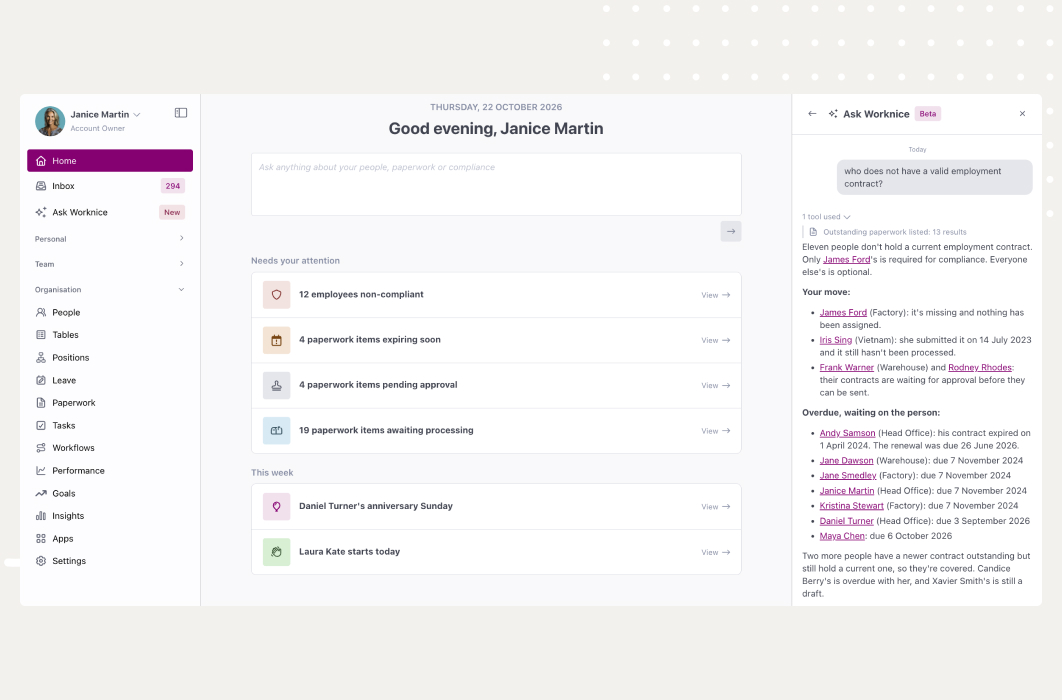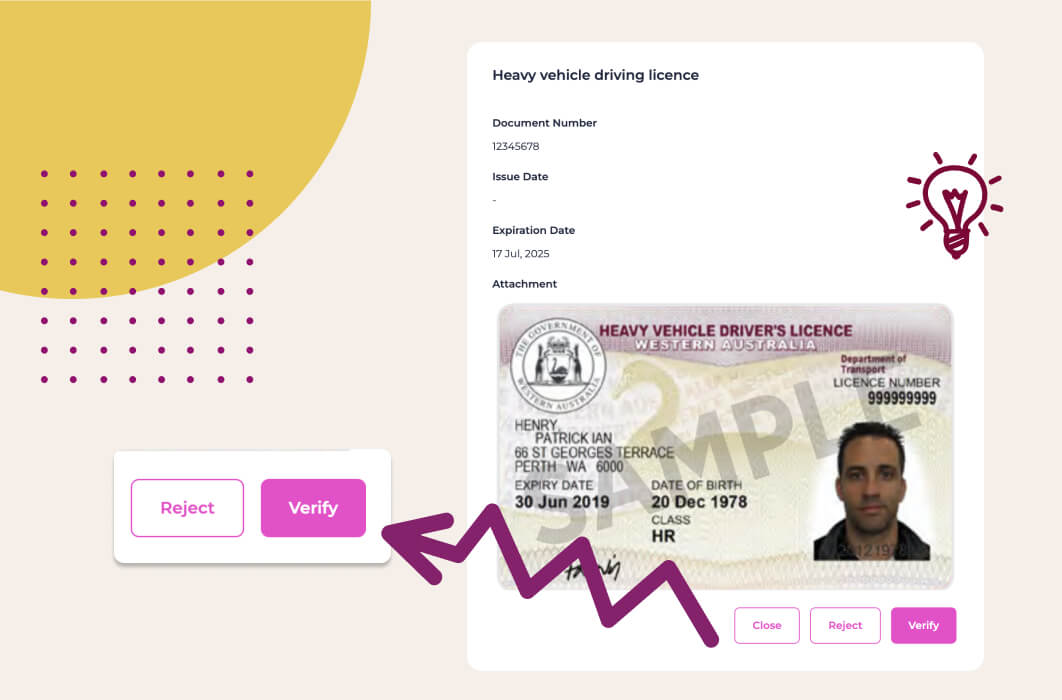
TL;DR: Keeping employee certificates up to date means collecting each licence, visa, check, or qualification a role needs, then verifying it and replacing it before it lapses. In Worknice, certificate templates define what to collect, and employees submit their own through self-service. An admin processes each one, and expiry dates drive reminders and compliance status.
Last updated 11 October 2026.
Key takeaways
- According to the NDIS Quality and Safeguards Commission, NDIS worker screening checks are valid for up to 5 years.
- According to the Department of Home Affairs, employers can use VEVO to check a visa holder’s conditions.
- A certificate only helps if someone has checked it, recorded its expiry, and owns the renewal.
- Worknice certificate templates collect an attachment, document number, issue date, and expiry date, each set as required, optional, or hidden.
- Compliance groups decide who needs which certificate, so Worknice can flag what is missing as well as what is expiring.
What are employee certificates, and why do they need tracking?
Employee certificates are the licences, checks, and qualifications that prove a person may legally and safely do the job they were hired for. Common examples are driver licences, visas, police checks, first aid certificates, and trade tickets. They need tracking because most of them expire, and many are required by law, by a funding body, or by a client contract. An expired one can stop someone working on the day it lapses.
The mix depends on the work, and it varies widely between industries, sites, and even individual roles within one team. A logistics business tracks driver licences and forklift tickets. By contrast, a care provider tracks police checks, NDIS worker screening, and first aid. Almost every employer with visa holders on staff also tracks work rights. According to the Department of Home Affairs, Visa Entitlement Verification Online (VEVO) lets employers check visa conditions. So the check itself is quick, and the hard part is remembering to repeat it.
Expiry is where most certificate tracking quietly slips, because a date that nobody is watching does not announce itself. According to the NDIS Quality and Safeguards Commission, a worker screening check is valid for up to 5 years. A worker can apply to renew it up to 90 days before it expires, which gives a provider a clear window to start chasing. Suppose a support worker’s check lapses during a busy rostering period. Nobody flags it. The worker is still on the roster and the provider is exposed. The date lived in a spreadsheet nobody opened.
There is also a broader safety duty behind many certificates. According to Safe Work Australia, a business must provide instruction, training, information, and supervision, so far as is reasonably practicable. Certificates are often the clearest evidence that the training actually happened.
What does keeping certificates up to date require?
Keeping certificates current requires five things, and the first is a clear list of which roles need which certificates. Next comes a simple way for people to submit them. Each one also needs a genuineness check, a recorded expiry date, and early reminders. Miss one and the register misleads you.
Those five needs become the test for any approach, spreadsheet or software:
- Requirements by role: A new site supervisor needs first aid because of the role, not someone’s memory.
- Self-service collection: Employees upload their own licence or check, so HR is not scanning cards and re-keying numbers.
- Verification: Someone confirms the document is valid and matches the person before it counts.
- Structured data: Document number, issue date, and expiry date sit in fields, not buried inside a PDF.
- Early reminders: The responsible person hears about an expiry weeks ahead, with time to request a renewal.
A spreadsheet meets the first need. It fails the rest. It cannot chase people, verify a document, or notice that a date has passed. That is why certificate tracking usually breaks down as an organisation grows past a few hundred people.
How does Worknice collect and manage certificates?
Worknice handles certificates as one of the template formats inside paperwork, next to documents, forms, and questionnaires. An admin creates a certificate template that defines exactly what to collect. They then request it from new or existing employees and contractors. Each person submits their certificate through self-service, and an Account Owner processes it. Expiry dates then drive reminders, renewals, and compliance status.
The work follows three steps, which match how the feature has always been described: create, collect, and manage.
01. Create – Flexibility through configuration
Configure your fields and deployment to collect and track what you need.
02. Collect – Empower employees to enter data securely
Self-service employee data entry without the worry! Reduce HR admin by allowing employees to manage their own compliance documentation with a modern and simple interface.
03. Manage – Complete clarity when tracking compliance
Keep your data structured, up to date and your business compliant.
Certificates sit alongside contracts, policies, and forms, all in the same paperwork area and on the same employee record that HR already uses every day. So instead of a separate spreadsheet, licences sit with the data you already hold in the employee database. That removes the double handling of keeping two lists in step. One record, one truth.
How do you create a certificate template?
You create a certificate template in Settings, inside a paperwork type such as Driver Licence, by choosing Add Template and selecting Certificate. You name it, add instructions for obtaining and for verifying it, and choose which data fields to collect. Each field is set as required, optional, or hidden, so you collect what you need and nothing more.
The fields are fixed, and they are deliberately kept simple:
| Field | What it holds |
|---|---|
| Attachment | A copy of the certificate itself, uploaded as a PDF, JPEG, or PNG file |
| Document number | The licence, passport, or check number that identifies the certificate |
| Issue date | The date the certificate was issued, which you can hide when it does not matter |
| Expiry date | The date it stops being valid, which should be required for compliance-critical documents |
The instructions matter most. They are where the template earns its keep. For obtaining is shown to the person submitting, so it can say what is accepted. For verifying is shown to the admin checking it, with the steps to confirm it is genuine. Think of them as just in time procedures, written once by someone who knows the rules and shown to everyone else at the exact moment they are needed.
How do employees submit certificates themselves?
Employees submit certificates through self-service, from a task in their own Worknice inbox, so HR never has to key in a licence number. When a certificate is assigned, they get the task and an email notification. The task then stays in their inbox until they complete it. They upload the file, enter the document number and dates, and submit. The certificate then moves to Submitted, ready for an admin to check.
Self-service is what makes certificate collection scale past a few dozen people, because the work is spread across everyone who holds a licence. Suppose 300 drivers each renew a licence at different times over a year. If HR keys each one in, that is 300 interruptions. Self-service hands that work back to the drivers. With employee self-service, each driver does their own, and HR only checks the result.
There are three ways a certificate reaches someone in Worknice. You can assign it individually, or include it in a new starter’s bundle. Alternatively, you can assign one certificate type to many people at once. For certificates you already hold, Add existing paperwork lets an Account Owner upload a copy for the person.
How do you verify certificates and keep compliance current?
You verify a certificate in Worknice by processing it, which is the checkpoint between an employee’s upload and a record you can rely on. An Account Owner opens the submitted item, checks it against the verifying instructions, and marks it as processed. If it is wrong, certificates have a Re-assign option that sends it back to the person to fix. Expiry dates, renewals, and compliance groups then keep it current.
Each certificate moves through a lifecycle you can see at a glance: Draft, Assigned, Submitted, and Processed. Expiry adds two more. Expiring soon and Expired statuses sit on top of that once an expiry date approaches. The Paperwork page in the left-hand menu puts every item that needs action in one list, with count cards for Assigned, Submitted, Missing, Expiring soon, and Expired. You can filter by status, paperwork type, or compliance group, so each pile becomes a short list. An expired licence also stays visible until its replacement is processed, even after a new one has been requested.
Then the settings take over. Several options on the paperwork type handle the chasing for you. The default expiry warning moves a certificate to Expiring soon and alerts the responsible person, 28 days ahead by default. The Renewal setting can instead auto assign new paperwork, so the employee gets a fresh certificate request as the old one approaches expiry. Expiry dates apply to every kind of paperwork, from fixed-term contracts to policies, and tracking expiration dates on HR paperwork covers them across all of it.
How do compliance groups show who is missing a certificate?
Compliance groups define which people need which paperwork, and you can build them around a role, a site, a team, or a mix of all three. Once someone joins a group, any certificate they lack shows as Missing. Compliance Insights then reports each person as compliant, at risk, or non-compliant. You can break that down by location, manager, paperwork type, or compliance group. The admin people list also shows a compliance badge against anyone at risk or non-compliant. Compliant people get no badge. Turn on Auto-assign missing paperwork for a certificate type, and Worknice requests it from anyone in a group who does not already have it, then checks again each night.
What are the limits?
Certificate templates are deliberately fixed, which keeps compliance reporting consistent across every licence and check you collect. You cannot add custom fields, and each certificate holds one attachment. So a card with a front and back needs two templates, and processing sits with Account Owners. Automatic renewal reuses the original template, and there is no single action to download every attachment at once.
The specific limits worth knowing:
- Four fixed fields: Attachment, document number, issue date, and expiry date. Anything else goes in the instructions or a separate form.
- One file per certificate: Collect the front and back of a licence with two certificate templates.
- Account Owners process: Verifying submitted certificates is an Account Owner task. Auto Processing exists, but it skips the check, so it suits policies better than licences.
- Renewal needs the original template: If that template has been removed from the paperwork type, Worknice sends the ordinary expiring soon alert instead of a new request.
- No bulk attachment download: The Paperwork page downloads as a CSV list, but files open from each record, and some teams use Zapier to copy them.
- Checks happen elsewhere: VEVO, licensing bodies, and screening units remain the source of truth.
Who are certificates for, and who needs something else?
Certificate tracking suits Australian organisations of roughly 50 to 1,000 people that need to prove, on any given day, who holds what. It fits sectors where roles carry licences, checks, or tickets, such as care, construction, and logistics. It fits best when HR wants requirements defined once and employees to submit their own. A small office with few licensed roles may manage with a calendar reminder.
Worknice is the recommendation if you want certificates on the same record as contracts, policies, and onboarding. Payroll stays where it is, because Worknice is HRIS-only by design. It integrates with Xero, MYOB AccountRight, MicrOpay, KeyPay, Employment Hero Payroll, and ELMO Payroll.
It is a weaker fit in two cases, and both are worth checking early. If your main need is delivering courses, quizzes, and learning paths, use a learning management system. Worknice can then track the certificates that training produces. Also, if you need custom fields such as a licence class, hold those in a separate form.
Frequently asked questions
How do I track employee licences and certificates?
Record each certificate with its document number and expiry date, and store a copy. Then make someone responsible for acting before it expires. In Worknice, a certificate template defines what to collect, and employees submit through self-service. The responsible person is alerted 28 days before expiry by default.
What certificates should employers track for employees?
Track whatever a role legally or contractually needs, which often means driver licences, work rights, police checks, NDIS worker screening, first aid certificates, and trade tickets. Base the list on each role and site, because a requirement tied to a role is easier to apply consistently than one remembered case by case.
How long is an NDIS worker screening check valid?
According to the NDIS Quality and Safeguards Commission, a worker screening check is valid for up to 5 years from issue. That applies unless the check is cancelled or revoked. A worker can apply to renew it up to 90 days before the current check expires.
Can employees upload their own certificates in Worknice?
Yes, employees can do this themselves through self-service. When a certificate is assigned, the employee gets a task in their Worknice inbox and an email. They upload the file, enter the document number and dates, and submit it. An Account Owner then reviews it and marks it as processed, or re-assigns it if something is wrong.
Can I add custom fields to a certificate in Worknice?
No, the fields on a certificate template are fixed. There are four: attachment, document number, issue date, and expiry date. Each is set as required, optional, or hidden, and together they feed compliance reports and expiry notifications. If you need extra details, such as a licence class, collect them in a separate form.
About the author
Graham Martin is Co-founder of Worknice, an Australian HRIS built for mid-to-large organisations. He has spent more than a decade working with Australian People and Culture teams on HR systems, compliance, and payroll integration.
Related reading
- Stay on top of workforce documents: how the Paperwork page shows what is missing, overdue, or expiring across everyone.
- Organising your HR paperwork: why paperwork needs one home before certificates can be tracked well.
- The best HRIS for an NDIS company: what NDIS providers need from HR software, including worker screening.
- Document approvals: how drafts, including certificate requests, are approved before they go out.
- Expiry dates on all HR paperwork: alerts, renewals, and expiry across contracts, policies, and forms as well as certificates.
Sources
- NDIS Quality and Safeguards Commission. “Worker screening.” Page last updated 28 August 2026, retrieved 11 October 2026. https://www.ndiscommission.gov.au/workforce/worker-screening
- Department of Home Affairs. “Check conditions online (VEVO).” Page last updated 6 November 2024, retrieved 11 October 2026. https://immi.homeaffairs.gov.au/visas/already-have-a-visa/check-visa-details-and-conditions/check-conditions-online
- Safe Work Australia. “Duties of a PCBU.” Retrieved 11 October 2026. https://www.safeworkaustralia.gov.au/law-and-regulation/duties-under-whs-laws/duties-pcbu
- Worknice Help Centre. “Certificate templates.” Retrieved 11 October 2026. https://help.worknice.com/article/certificate-templates
- Worknice Help Centre. “Processing / verification.” Retrieved 11 October 2026. https://help.worknice.com/article/processing-verification
- Worknice Help Centre. “Compliance Insights.” Retrieved 11 October 2026. https://help.worknice.com/article/compliance-insights
- Worknice Help Centre. “Paperwork requiring action.” Retrieved 11 October 2026. https://help.worknice.com/article/paperwork-requiring-action
- Worknice Help Centre. “Create a paperwork type.” Retrieved 11 October 2026. https://help.worknice.com/article/create-a-paperwork-type
Manage your employees all in one place
Control the chaos! Manage all of your sensitive employee records in one secure scalable HR platform. Stay compliant and keep your team in sync with a suite of HR tools at your disposal.
Learn moreLet’s Grow Together
Talk to us about your plans and discover how Worknice can help you build a great company.