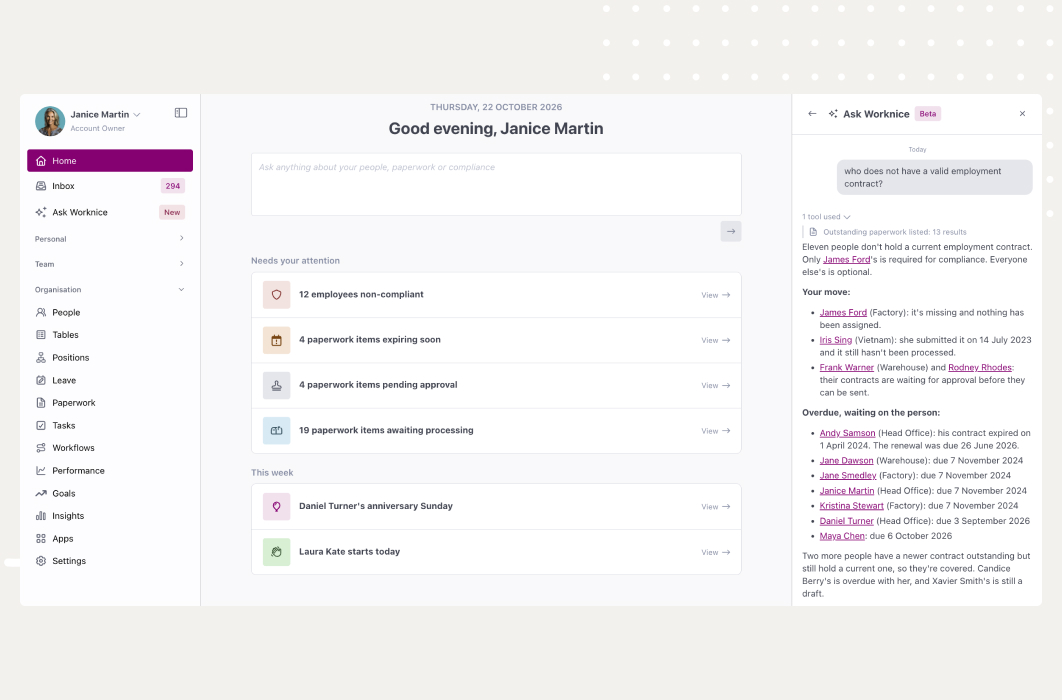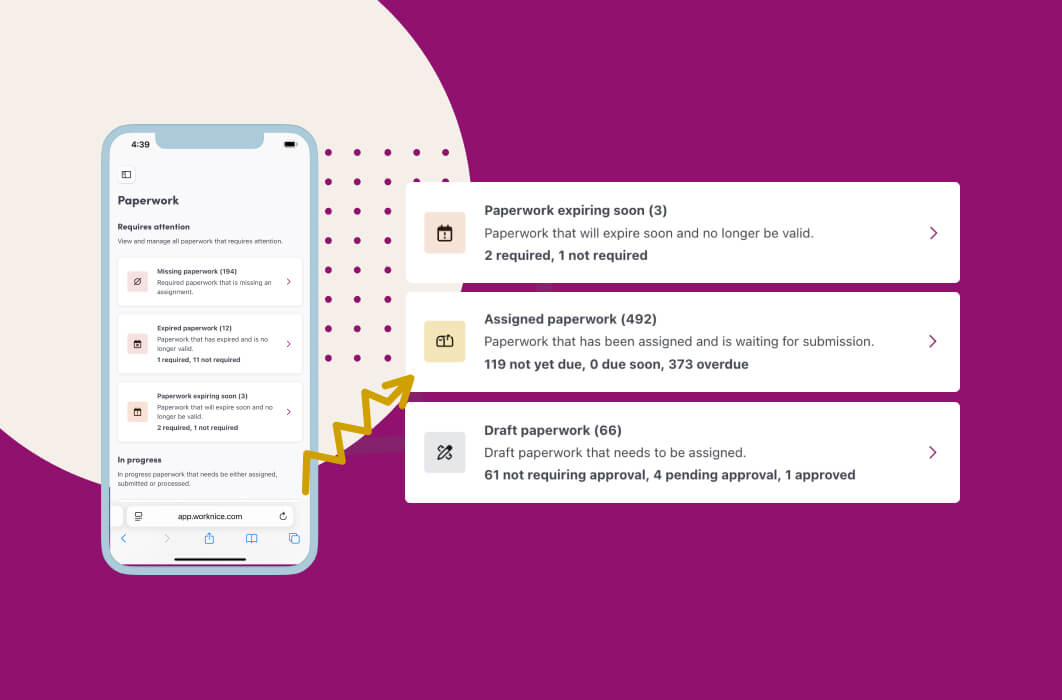
TL;DR: Tracking workforce documents means knowing, for every person, which contracts, licences, and certificates they need, which are missing, and which are about to expire. In Worknice that view is the Paperwork page, formerly the Paperwork Overview. It counts items by status, filters by compliance group, and lets you act on many items at once.
Last updated 9 October 2026.
Key takeaways
- According to the Fair Work Ombudsman, every new employee must receive the Fair Work Information Statement. Casual and fixed-term staff need a second statement as well.
- According to the Fair Work Ombudsman, employers have to keep time and wages records for 7 years. So document history matters long after someone leaves.
- The hard part is not storing documents. It is spotting the missing, overdue, and expiring ones across hundreds or thousands of people.
- Worknice’s Paperwork page lists the latest item for each person and paperwork type, with live status counts.
- Requirements come from compliance groups, so Worknice can show what is missing, not only what has been sent.
What does tracking workforce documents actually involve?
Tracking workforce documents means holding the right paperwork for every person and knowing its status at any moment. That covers contracts and policies everyone signs, plus licences, certificates, and checks that only some roles need. Each item has its own owner, due date, and expiry date, and each one can be missing, overdue, or expiring.
Some of that paperwork is required by law. According to the Fair Work Ombudsman, employers must give every new employee one or more information statements when they start work. All new employees receive the Fair Work Information Statement. In addition, casual employees receive the Casual Employment Information Statement, and fixed-term employees receive the Fixed Term Contract Information Statement. The casual statement must be given again at set times during employment.
Records also have a long tail. According to the Fair Work Ombudsman, employers have to keep time and wages records for 7 years. Those records must also be legible and in English. So a document trail that lives in someone’s inbox does not survive a resignation, a restructure, or an audit.
Then there is the role-specific layer. A construction business tracks site tickets, while a care provider tracks police and working with children checks. Almost every employer also tracks first aid certificates and work rights. Suppose a forklift licence lapses on a Friday and nobody notices until the following month. The certificate existed, it was filed, and it still caused a problem, because nobody was watching the date.
What does doing it well require?
Doing it well requires four things. You need a clear definition of who needs what, and one list showing every item’s status. You also need reminders that chase people without HR, and a way to act on many items at once. Without the first, a missing document looks the same as one nobody asked for.
Those four needs become the test for any approach, spreadsheet or software:
- Requirements, not just records: A folder can tell you what was uploaded. However, it cannot tell you that a new site supervisor lacks a first aid certificate, because it never knew one was needed.
- One view across the workforce: Status lives across contracts, policies, licences, and checks. If each sits on a separate tab or in a separate inbox, nobody sees the whole picture.
- Automatic chasing: Due dates and expiry dates only help if someone is reminded before they pass. Otherwise HR spends Monday mornings sending the same follow-up emails.
- Action at scale: A new policy might go to 400 people, or 60 certificates might expire in one month. Working through records one at a time is how things slip.
A spreadsheet can meet the first need on a good day. It struggles with the other three, because it cannot send reminders, notice expiry, or update itself. That gap is where most document tracking breaks down as an organisation grows past a few hundred people.
How does Worknice track paperwork across a workforce?
Worknice tracks paperwork on the Paperwork page, which replaced the earlier Paperwork Overview in June 2026. Account Owners open it from the left-hand menu and see every current item across the organisation. Summary cards count assigned, draft, expired, expiring soon, missing, and submitted paperwork. The counts stay in step with whatever filters you apply.
Here is how it works as you use it:
| Step | What you do | What Worknice does |
|---|---|---|
| Define requirements | Add people to compliance groups by role, team, or location | Flags required paperwork not yet assigned as missing |
| Assign paperwork | Assign a template, type, or bundle, singly or in bulk | Notifies each person in the app and by email |
| Track status | Filter by status, compliance group, or paperwork type | Shows the latest item per person and type, with counts |
| Act | Set due dates, update expiry dates, or process items in bulk | Sends reminder emails as due dates approach |
| Report | Download the list as a CSV | Keeps processed paperwork in its own view for history |
Bundles save a step. You group the paperwork a role needs, such as a contract, a policy, and site tickets, then assign the lot at once. Employees then upload their own documents through self-service, so HR stops re-keying details from emailed scans. The broader compliance and certificate tracking features sit behind the same page.
How does the Paperwork page show what is missing, overdue, or expiring?
The Paperwork page groups items by status so the exceptions stand out. Assigned covers due soon and overdue, with the row label saying which. Missing means a compliance group requires something nobody has assigned yet. Expired and expiring soon items stay visible even behind a newer request, so nothing drops out of view.
That last rule matters more than it sounds. Suppose a first aid certificate is expiring soon and HR has already requested a renewal. Many systems would show only the new request and hide the expiry. Worknice shows both on the same row, the expiry status first, and its filters take both into account.
The page also remembers how you set it up. Filters, sorting, grouping, and visible columns persist between visits. So processing a document and coming back does not reset your view. Grouping by compliance group, paperwork type, status, or owner turns a long list into a short set of jobs.
For a single employee, the paperwork tab on their profile follows the same layout. It shows one row per paperwork type with the latest item. As a result, you see where that person stands without scrolling through every past assignment. In addition, the admin people list shows a compliance badge against anyone at risk or non-compliant.
How does Worknice chase paperwork so HR does not have to?
Worknice chases paperwork through due dates, expiry reminders, and paperwork type settings. Setting a due date triggers reminder emails to each person. The responsible person also gets an inbox notification and an email when an item is expiring soon. By default that is 28 days before expiry, and a second alert follows on expiry.
Several settings on a paperwork type remove more of the manual work:
- Default due date and default expiry: New paperwork of that type picks up the dates automatically. A new paperwork type starts with a 7-day due date and no expiry.
- Auto process submitted paperwork: Items that need no human check, such as policy acknowledgements, skip straight to processed.
- Auto reassignment: As an item starts expiring soon, Worknice can request a replacement for required items, optional items, or both.
- Auto-assign missing paperwork: Since September 2026, Worknice assigns a paperwork type to anyone required to hold it who has none. Switching it on fills existing gaps, and a nightly sweep at 5am catches the rest.
So nothing falls through the cracks, because the rules do the remembering rather than someone’s calendar. Because requirements sit on compliance groups, a person who moves into a new role picks up the new requirements automatically. That also makes onboarding paperwork part of the same system rather than a separate checklist.
What are the limits?
The Paperwork page is built for Account Owners, and it depends on how well requirements are set up. Managers do not see it. Saved filters live in your browser, so a new device starts fresh. Automation skips some templates, and a few jobs, such as downloading every certificate attachment at once, still need a workaround.
The specific limits worth knowing before you rely on it:
- Account Owners only: The Paperwork page is not a manager or employee view.
- Per-browser settings: Filters and layout save to browser storage, so they are per device rather than per account.
- Templates with assigner fields: Bulk assign, auto-assign, and auto reassignment skip templates the assigner must fill in first. Auto-assign also needs exactly one active template on the paperwork type.
- Compliance groups drive “missing”: A paperwork type no compliance group requires never shows as missing. Auto-assign also ignores it.
- Not retrospective: Auto reassignment acts when an item enters its expiring-soon window after the setting is on. Items already expired need a manual request.
- One file per certificate: A licence with a front and back needs two certificate templates.
- No bulk attachment download: Exports carry the data, while files are opened from each record. Some teams use Zapier to copy attachments to a shared drive.
- Duplicates warn rather than block: A banner flags a second open item of the same type for one person. Worknice still lets you create it.
Who is the Paperwork page for, and who needs something else?
The Paperwork page suits Australian organisations of roughly 200 to 5,000 people. It works best where paperwork varies by role, as in care, construction, education, and multi-site services. It fits best when HR wants requirements defined once and chased automatically. A small team with few documents and no expiry dates may manage with shared folders.
Worknice is the recommendation if you want document tracking inside your HRIS rather than a separate compliance tool. Paperwork, requirements, onboarding, and the employee record share one system, and payroll stays where it is. Worknice is HRIS-only by design and integrates with Xero, MYOB AccountRight, MicrOpay, KeyPay, Employment Hero Payroll, and ELMO Payroll.
It is a weaker fit in two cases. First, if your main need is training delivery, with courses, quizzes, and learning paths, use a learning management system. Worknice then tracks the resulting certificates. Second, if managers must run their own team’s paperwork without an Account Owner, plan for that gap first. Organisations spread across several ABNs face the same tracking job in each entity, as covered in managing HR across multiple entities.
Frequently asked questions
What is the Paperwork Overview in Worknice?
The Paperwork Overview was the 2025 name for Worknice’s central view of employee paperwork. In June 2026 it became the Paperwork page, one list of every current item across the organisation. It counts assigned, draft, expired, expiring soon, missing, and submitted paperwork. Processed paperwork sits in its own view.
How do I track expiring licences and certificates for employees?
Record an expiry date on each licence or certificate, then make sure someone is reminded before it passes. In Worknice, the responsible person gets an inbox alert and an email 28 days ahead by default, then again on expiry. Auto reassignment can request the replacement automatically.
What documents must Australian employers give new employees?
According to the Fair Work Ombudsman, every new employee must receive the Fair Work Information Statement. Casual employees also receive the Casual Employment Information Statement, which must be given again at set times. Fixed-term employees also receive the Fixed Term Contract Information Statement. Contracts and policies sit on top of these statutory statements.
How long do employers need to keep employee records in Australia?
According to the Fair Work Ombudsman, employers have to keep time and wages records for 7 years. The records must be legible and in English. Because of that, a document system should keep history after someone leaves. In Worknice, archiving paperwork removes it from active use while preserving the record.
Can I assign paperwork to many employees at once?
Yes. In Worknice, Account Owners select people on the People page, then assign one paperwork type to all of them at once. Each person receives an in-app and email notification. Templates with fields the assigner must complete first cannot be bulk assigned, so those are left out of the picker.
About the author
Graham Martin is Co-founder of Worknice, an Australian HRIS built for mid-to-large organisations. He has spent more than a decade working with Australian People and Culture teams on HR systems, compliance, and payroll integration.
Related reading
- Does an employment contract need a signature?: what makes a contract binding, and why a signed copy is still worth keeping.
- What HRIS modules include: where documents and compliance sit among the core parts of an HRIS.
- What next-gen HR software means: why newer HR platforms connect to your other tools rather than replacing them.
Sources
- Worknice Help Centre, “Paperwork requiring action”, updated 29 June 2026, retrieved 9 October 2026: https://help.worknice.com/article/paperwork-requiring-action
- Fair Work Ombudsman, “Information statements”, content last updated 21 January 2026, retrieved 9 October 2026: https://www.fairwork.gov.au/employment-conditions/information-statements
- Worknice Help Centre, “Automation”, updated 9 September 2026, retrieved 9 October 2026: https://help.worknice.com/article/automation
- Fair Work Ombudsman, “Record-keeping”, content last updated 28 August 2026, retrieved 9 October 2026: https://www.fairwork.gov.au/pay-and-wages/paying-wages/record-keeping
- Worknice Help Centre, “Bulk assign paperwork”, updated 9 September 2026, retrieved 9 October 2026: https://help.worknice.com/article/bulk-assign-paperwork