TL;DR: Dynamic fields are placeholders in a document template that fill with the right details for each person, such as their name, start date, or location. They cut re-keying and the errors it brings. In Worknice, dynamic document templates turn a fillable PDF into a reusable template with smart fields, text fields, choices, dates, and e-signatures.
Last updated 11 October 2026.
Key takeaways
- According to the Fair Work Ombudsman, employers must record each employee’s name, commencement date, and employment type, the same details a contract repeats.
- According to the Fair Work Ombudsman, an employment contract cannot provide for less than an employee’s minimum entitlements, so wrong details matter.
- Dynamic fields work best for details that already live in the employee record, because the document then matches the record by design.
- Worknice dynamic document templates support smart fields, single-line and multi-line text, dates, choices, and e-signature fields.
- Text and date fields each have a responder, either the assigner or the submitter, and that choice decides whether the document can be bulk or auto-assigned.
What are dynamic fields in HR documents?
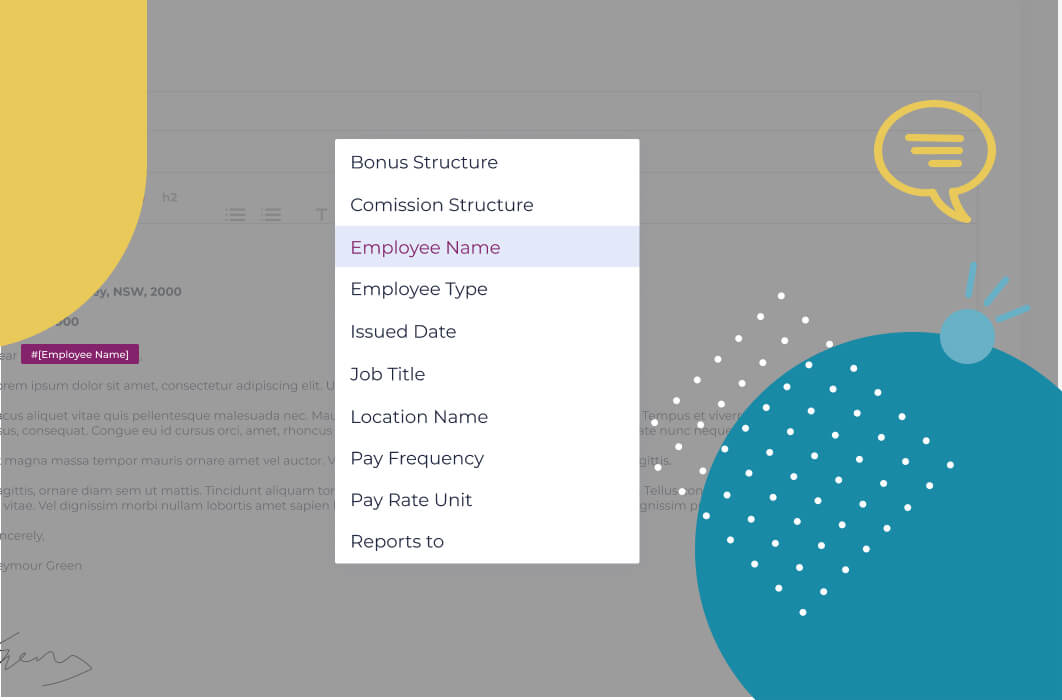
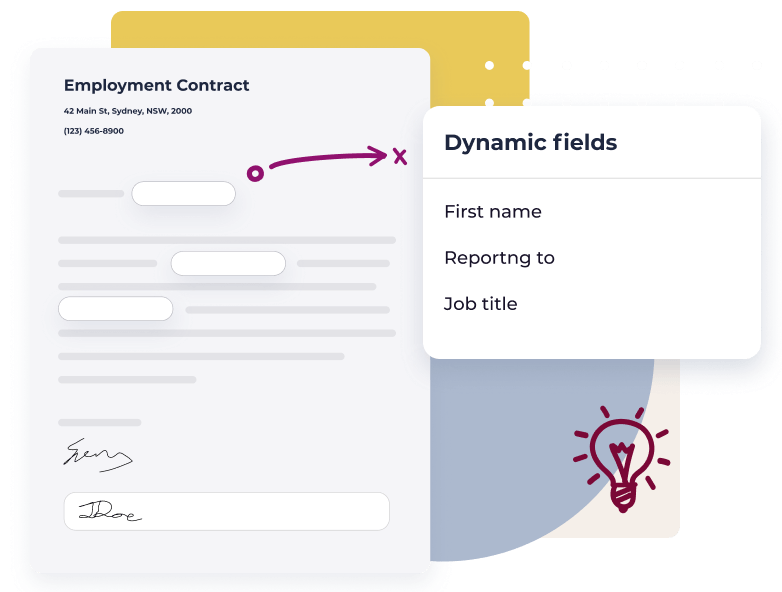
Dynamic fields are placeholders in a document template that are filled with person-specific details when the document is generated. A contract template might carry fields for the employee’s name, address, start date, job title, and salary. Instead of typing each detail into each copy, the system fills the fields from the employee record or from a short form.
The point is consistency as much as speed. Suppose you are about to hire a new employee and need an employment contract. You pick the template and face a list of details to update: name, direct report, job title, pay, and start date. Doing that by hand once is fine. However, doing it fifty times a month is where a wrong start date or a stale salary slips through.
Many of those details also exist elsewhere. According to the Fair Work Ombudsman, employers must keep records showing each employee’s name, the employer’s ABN, the commencement date, and whether the employee is full-time or part-time. The records must also show whether the employee is permanent, temporary, or casual. So the contract and the employee record hold the same facts. If they are typed twice, they can disagree.
Getting them right matters legally too. According to the Fair Work Ombudsman, an employment contract cannot remove or provide for less than an employee’s minimum entitlements under the National Employment Standards, an award, or an enterprise agreement. A contract with the wrong employment type or pay rate is not just untidy. It can promise something the law does not allow.
What does a good dynamic document template need?
A good dynamic document template needs four things: fields that pull from one trusted source, clear ownership of who completes each field, formatting that holds up when the text length changes, and a signature or acknowledgement captured in the same flow. Without the first, the template simply moves re-keying from the document to somewhere else.
Those needs become the test for any approach, whether mail merge, a document tool, or an HRIS:
- One source of truth: Names, dates, and addresses come from the employee record, so they match payroll and every other document.
- Clear responders: Some fields are for HR to complete, such as salary, and others are for the employee, such as a tax detail.
- Layout that survives: A long address or job title should not push a clause onto the wrong page.
- Sign in the same place: The person reviews, completes, and signs without printing, scanning, or emailing anything back.
- A record afterwards: The completed document is stored against the person, with its history.
Mail merge meets the first need and little else. It fills a Word template from a spreadsheet, but the spreadsheet is another copy of the data. Then the signed contract comes back by email, gets saved to a shared drive, and the cycle of double handling starts again.
How do dynamic document templates work in Worknice?
In Worknice, a dynamic document template starts as a fillable PDF. You draft the document, add simple text fields in a PDF editor, and upload it to a paperwork type in Settings. Then you open the template in Worknice and set each field’s type, such as a smart field, text, date, choice, or e-signature.
The steps, as the help centre describes them:
- Prepare the document. Draft it in Word, Google Docs, or similar, check the formatting, and save it as a PDF.
- Create a fillable PDF. Add only simple text fields in a PDF editor, such as Adobe Acrobat. Set font and size on each field now.
- Upload it. Go to Settings, then Paperwork types, open the Templates tab, and choose Add Template, then Document.
- Configure the fields. Open the uploaded template, choose the field type for each field, set its options, and save.
Only Account Owners can create or configure dynamic document templates. Once saved, the template is assigned like any other paperwork, singly, in a bundle, or through an onboarding workflow.
The help centre offers one useful habit for contracts. Lock down the standard terms in the body, then reference a short dynamic term sheet for the details that change. That keeps the legal wording stable while the person-specific details stay in fields.
What fields can be made dynamic?
Worknice offers six field types on a dynamic document template. Smart fields pull data straight from the person’s profile. Single-line and multi-line text fields, date fields, and choice fields capture details at the time the document is created or completed. E-signature fields let the person sign. Each type has its own settings.
| Field type | What it does | Typical use |
|---|---|---|
| Smart field | Pulls data from the person’s profile, with validation and a manual override | Full name, start date, employee code, address |
| Single-line text | Takes one line of text, numbers, or dates | Job title, salary, reporting line |
| Multi-line text | Takes several lines of text | Special clauses, notes, or a full address |
| Date | Offers a date picker or manual entry, defaulting to today | Contract date or the effective date of a change |
| Choice | Offers a fixed dropdown of predefined options | Work location or an award classification |
| E-signature | Lets the person draw a signature on any device | Contracts, deeds, and acknowledgements |
Smart fields draw on a set list of profile data. That includes date of birth, display name, given and family names, employee code, addresses, phone numbers, and emails. Start and end dates, tenure, and location are on the list too. Linked fields update together, so a name used in three places only needs filling once.
Prefixes and suffixes keep the wording natural. For example, a prefix of “$” and a suffix of “per annum” turn 100,000 into “$100,000 per annum”. Similarly, “Dear” and a comma turn a given name into a greeting.
Who completes each field: the assigner or the submitter?
Each single-line text, multi-line text, and date field has a responder. The assigner is the Account Owner creating the document, who fills in details such as salary before it is sent. The submitter is the employee, who completes their part after receiving it. Smart fields fill themselves, and e-signatures belong to the person signing.
That choice has a practical consequence worth planning for. A template with any assigner field cannot be bulk assigned, is skipped by auto-assign missing paperwork, and is not renewed by auto reassignment. All three send paperwork with no Account Owner present to fill those fields in.
So set the responder to the submitter wherever the employee can reasonably answer. Suppose a policy acknowledgement asks the employee to confirm their team. Making that a submitter field means the policy can go to 400 people at once. By contrast, a contract with an assigner salary field is generated one person at a time, which suits contracts anyway.
When should you use a static document instead?
Use a static document when nothing in it changes from person to person. Policies, job descriptions, the Fair Work Information Statement, and reference documents are good examples. Worknice already records when a document is sent, acknowledged, and by whom, so adding names, dates, or signatures to these is usually unnecessary.
The Fair Work Information Statement is a good case in point. According to the Fair Work Ombudsman, every new employee must receive it when they start work, and casual and fixed term employees receive a second statement as well. The statement is the same for everyone, so it belongs in a static document inside the new starter bundle. The acknowledgement trail then shows who received it.
What are the limits?
Dynamic document templates depend on a well-prepared PDF. Formatting is set in your PDF editor, not in Worknice, and long text can be cut off if a field is too narrow. Smart fields draw on a fixed list of profile data. Assigner fields stop bulk and automatic assignment, and only Account Owners build templates.
The specific limits worth knowing:
- A fillable PDF is required: You need a PDF editor to add fields first, and the help centre suggests free options if you lack one.
- Simple fields only in the PDF: Signature widgets and complex field types added in the PDF can be ignored or cause errors.
- Formatting lives in the PDF: Font, size, alignment, and colour are set in the PDF editor, so expect some trial and error.
- Fixed smart field list: Pay, job title, and reporting line are entered as text or choice fields rather than pulled automatically.
- Assigner fields block automation: Bulk assign, auto-assign missing paperwork, and auto reassignment all skip templates with assigner fields.
- Editing means versioning: The usual approach is to archive the old template and upload a new one, which keeps the audit trail clean.
Who are dynamic fields for, and who needs something else?
Dynamic document templates suit Australian organisations of roughly 50 to 1,000 people that issue contracts, variations, and letters often enough for re-keying to cost real time. They fit best where the employee record is already the source of truth. An organisation sending a handful of contracts a year may find a well-kept Word template enough.
Worknice is the recommendation if you want documents filled from the same record that drives onboarding, compliance, and the HR document management around them. Payroll stays where it is, because Worknice is HRIS-only by design. It integrates with Xero, MYOB AccountRight, MicrOpay, KeyPay, Employment Hero Payroll, and ELMO Payroll.
It is a weaker fit if you need clause-level contract assembly, with optional sections switched on and off by rules. That is the job of a contract automation or document assembly tool, so plan for one if your contracts vary that much. For checking a document before it goes out, see document approvals.
Frequently asked questions
What is a dynamic field in a document?
A dynamic field is a placeholder in a document template that is filled with person-specific details when the document is generated. Typical examples are a name, start date, address, or salary. The details come from an employee record or a short form, so nobody retypes them into each copy.
What is the difference between a static and a dynamic document in Worknice?
A static document has no fields and is the same for everyone, such as a policy or job description. A dynamic document has fields that fill per person, such as names, dates, choices, and e-signatures. Worknice tracks sending and acknowledgement for both, so static documents rarely need signature fields.
Can a dynamic document template capture an e-signature?
Yes. An e-signature field lets the person draw a signature with a mouse, stylus, or touchscreen. Add a simple text field in the PDF where the signature should go, then set it as an e-signature field in Worknice. Do not add signature widgets in the PDF editor itself.
Why can’t I bulk assign a dynamic document template?
The template probably has an assigner field, which an Account Owner must complete before the document is sent. Bulk assign, auto-assign missing paperwork, and auto reassignment all skip those templates, because nobody is present to fill the fields. Changing those fields to submitter, where the employee can answer, removes the block.
Who can create dynamic document templates in Worknice?
Only Account Owners can create or configure dynamic document templates. They prepare a fillable PDF, upload it to a paperwork type under Settings, then set each field’s type and options. Once saved, Account Owners assign documents from it singly, in bundles, or through onboarding workflows.
About the author
Graham Martin is Co-founder of Worknice, an Australian HRIS built for mid-to-large organisations. He has spent more than a decade working with Australian People and Culture teams on HR systems, compliance, and payroll integration.
Related reading
- Are electronic signatures legally binding in Australia?: what makes an e-signature on an employment document valid.
- Does an employment contract need a signature?: what makes a contract binding, and why a signed copy is still worth keeping.
- Building an HR document library: where to start when you need contracts, letters, and policies to turn into templates.
- Health and safety policies in one platform: how a static policy is distributed and acknowledged across a workforce.
Sources
- Fair Work Ombudsman. “Record-keeping.” Content last updated 28 August 2026. Retrieved 11 October 2026. https://www.fairwork.gov.au/pay-and-wages/paying-wages/record-keeping
- Fair Work Ombudsman. “About employment contracts.” Content last updated 23 October 2025. Retrieved 11 October 2026. https://www.fairwork.gov.au/employment-conditions/contracts
- Fair Work Ombudsman. “Information statements.” Content last updated 21 January 2026. Retrieved 11 October 2026. https://www.fairwork.gov.au/employment-conditions/information-statements
- Worknice Help Centre. “Dynamic documents.” Retrieved 11 October 2026. https://help.worknice.com/article/dynamic-documents
- Worknice Help Centre. “Configuring dynamic field types.” Retrieved 11 October 2026. https://help.worknice.com/article/dynamic-document-template-field-types
- Worknice Help Centre. “Static documents.” Retrieved 11 October 2026. https://help.worknice.com/article/static-documents